Accounts and Funds
What Are Primary and Sub Accounts
Each organization uses a Primary Account to manage funds centrally, then creates Sub Accounts for business needs. Sub Accounts are suitable for isolating funds and responsibility by department, project, customer, or cost center.
For example, a cross-border e-commerce organization can create separate Sub Accounts for Procurement, Marketing, and Logistics under the Primary Account. Each department can view and use only the funds in its own Sub Account.
Why Use a Primary and Sub-account Structure
ORBSIS’s Primary Account and Sub Account structure lets an organization allocate and transfer funds flexibly within one account system without opening a separate account for every department or project. The Primary Account centralizes management, while Sub Accounts support delegated use. Transfers can be completed promptly and remain traceable, supporting both fund security and departmental autonomy.
How to Use Accounts and Funds
Manage the Primary Account
Primary Account details show the currency, Available Balance, Frozen Amount, and funding information. Before a top-up, verify the recipient information, reference, and supported currency to avoid delays caused by inconsistencies.
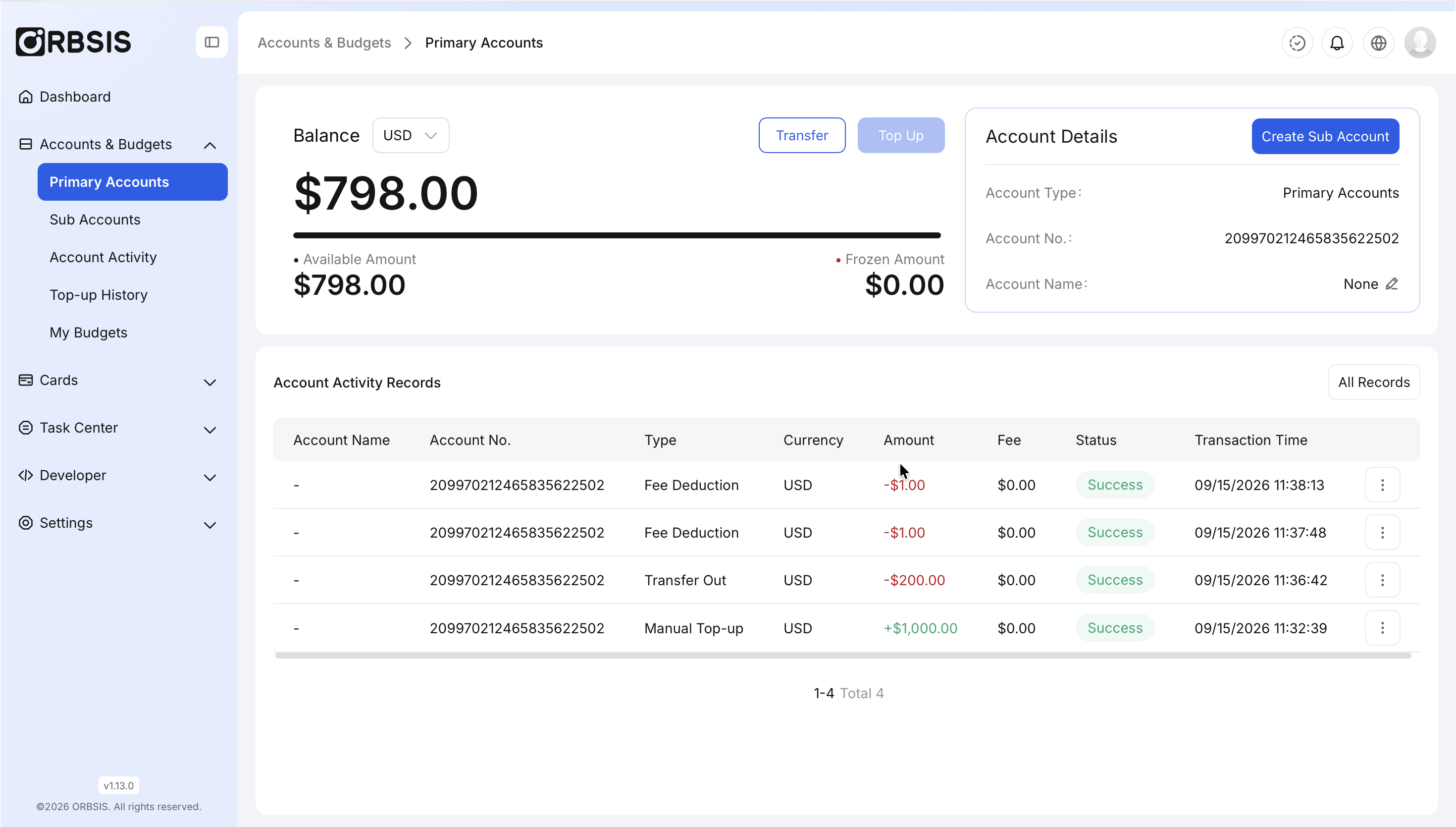
Primary Account Details
Create and Manage Sub Accounts
Go to [Accounts & Budgets → Sub Accounts].
Click Add or Create Sub Account.
Enter an identifiable name, select the currency, and confirm.
After creation, transfer funds from the Primary Account, then create a Budget under the Sub Account.
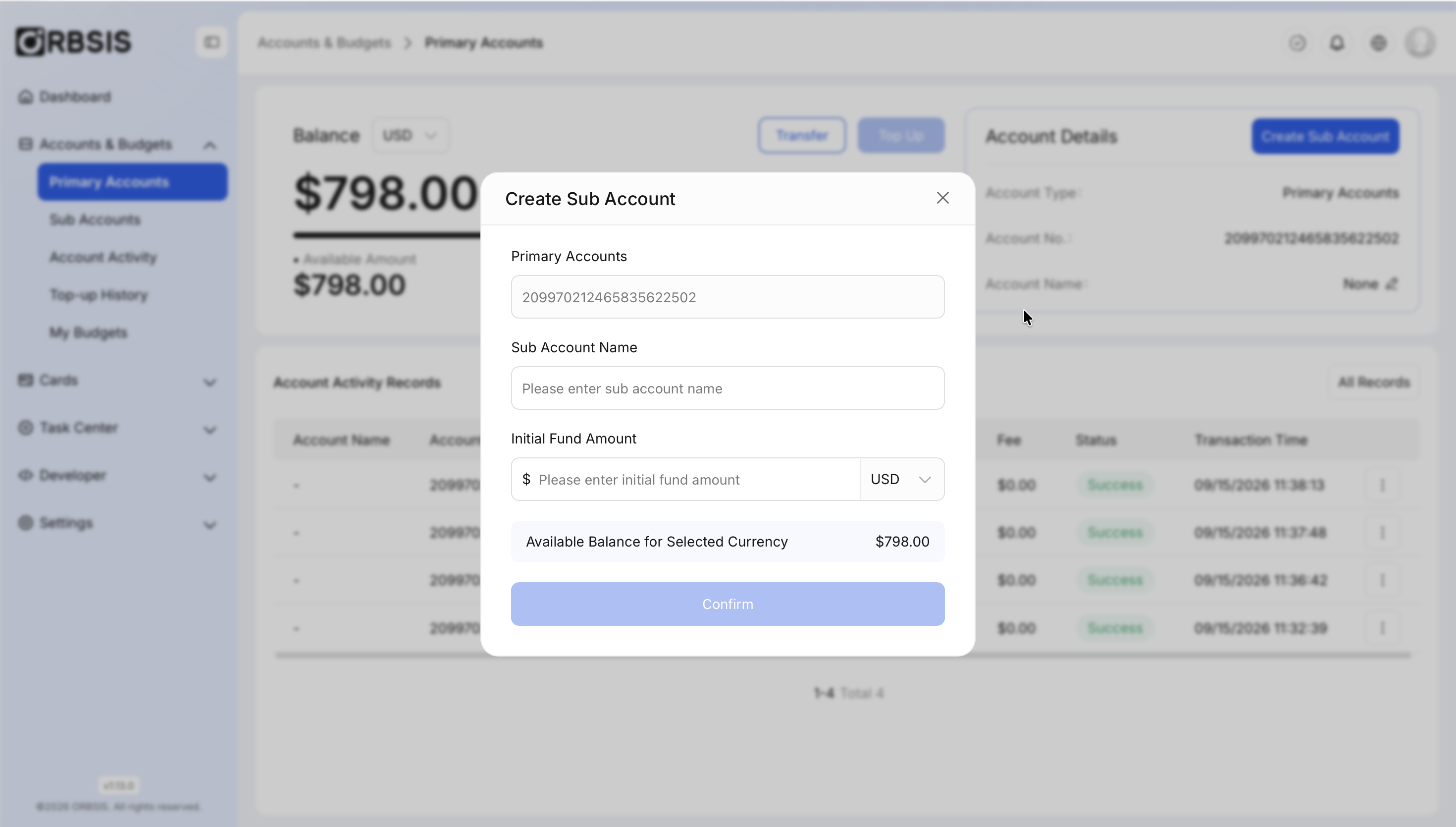
Create Sub Account
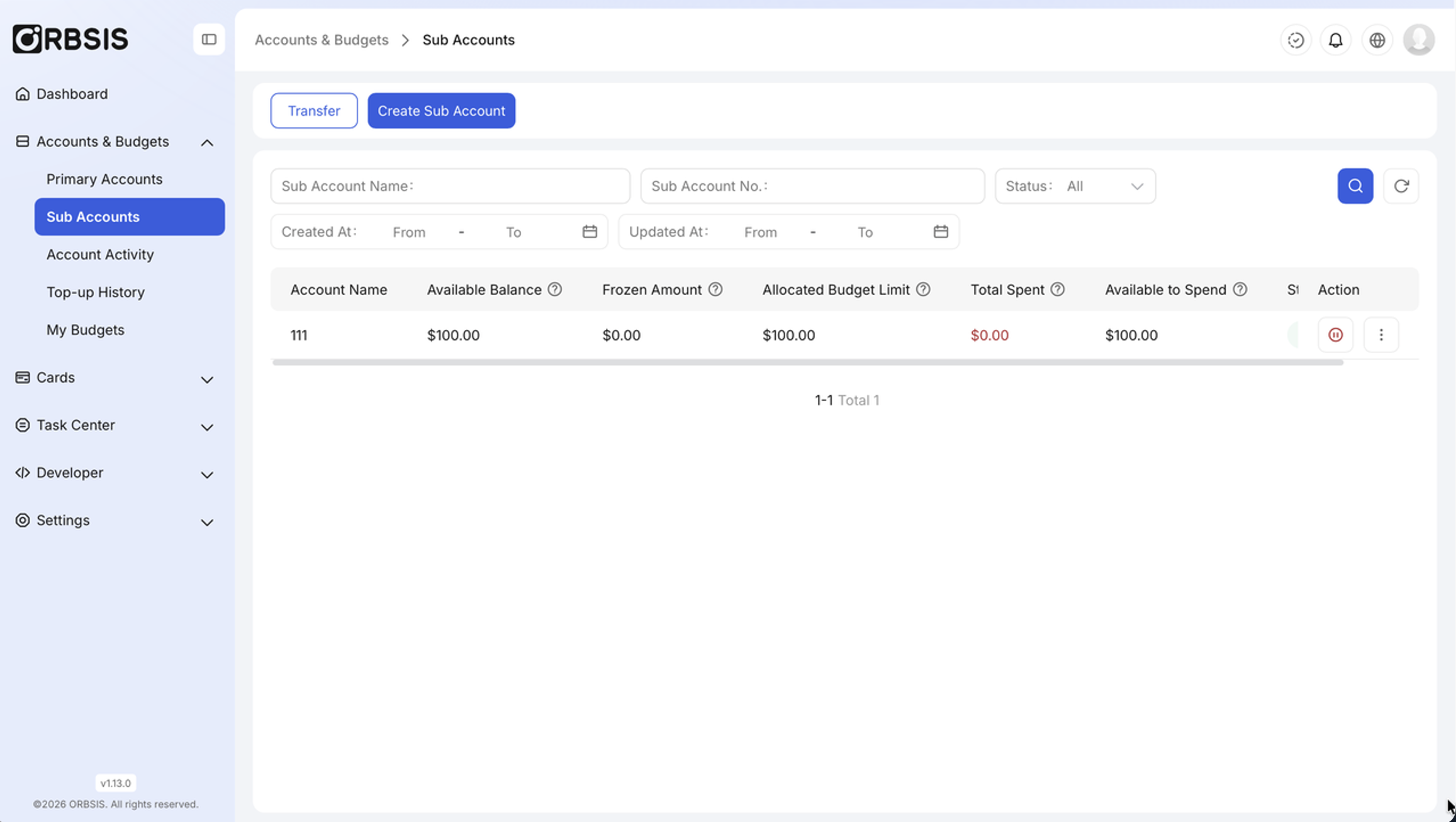
Sub Account List and Fund Fields
Transfer Funds Between Accounts
Transfers move real funds between a Primary Account and Sub Accounts. A Budget adjustment is not an account transfer. To recover unused Budget Limit, release the Budget amount first.
Click [Transfer] and select the source and destination accounts.
Enter the amount and check the currency and the source account’s Available Balance.
After confirmation, verify the outgoing and incoming records in the account details.
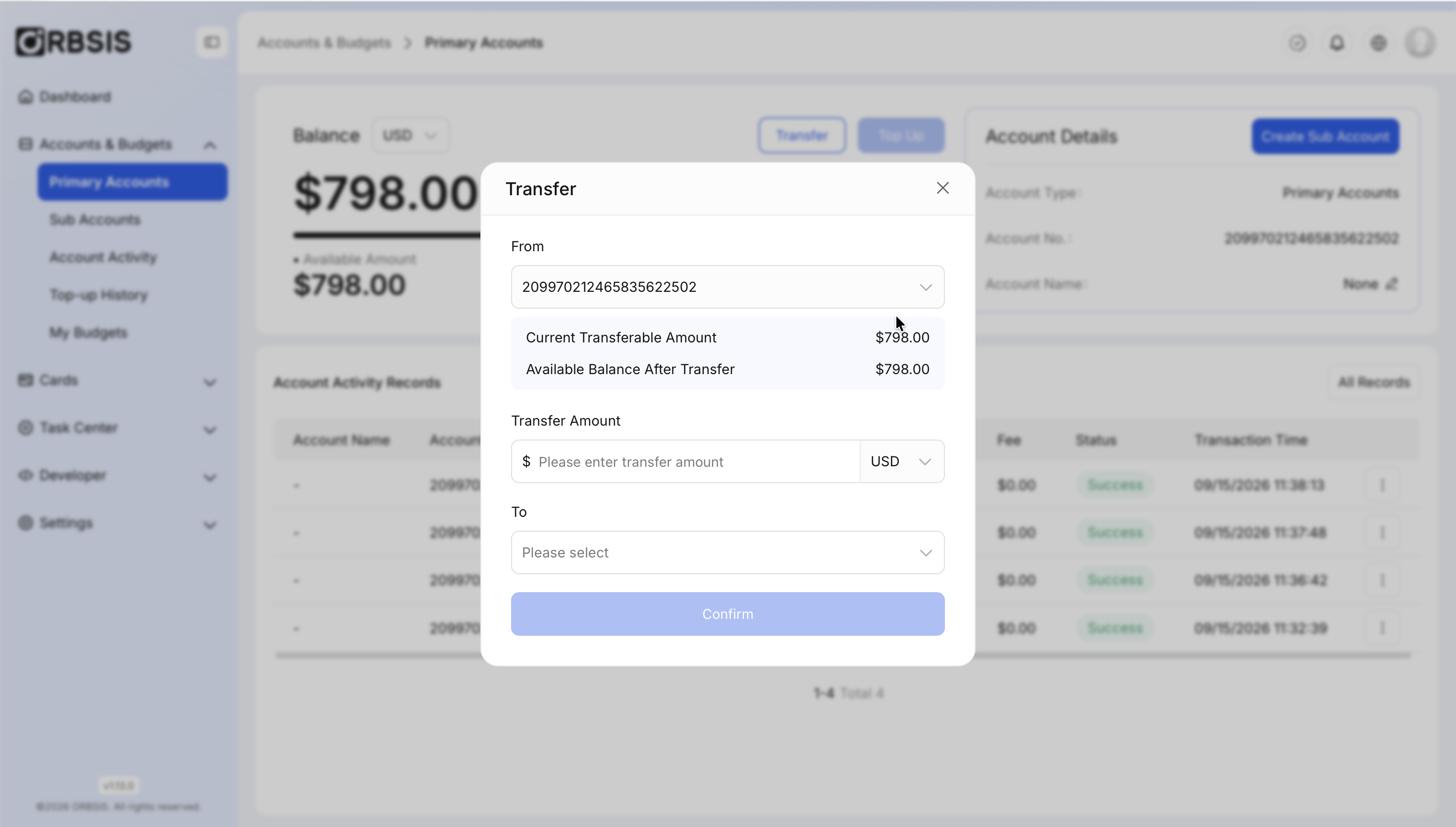
Transfer Between Accounts
View Sub-account Details
Sub-account details show Available Balance, Frozen Amount, Allocated Budget Limit, Total Spent, and Available to Spend. If Available Balance is insufficient, first check whether too much has been allocated to Budgets.
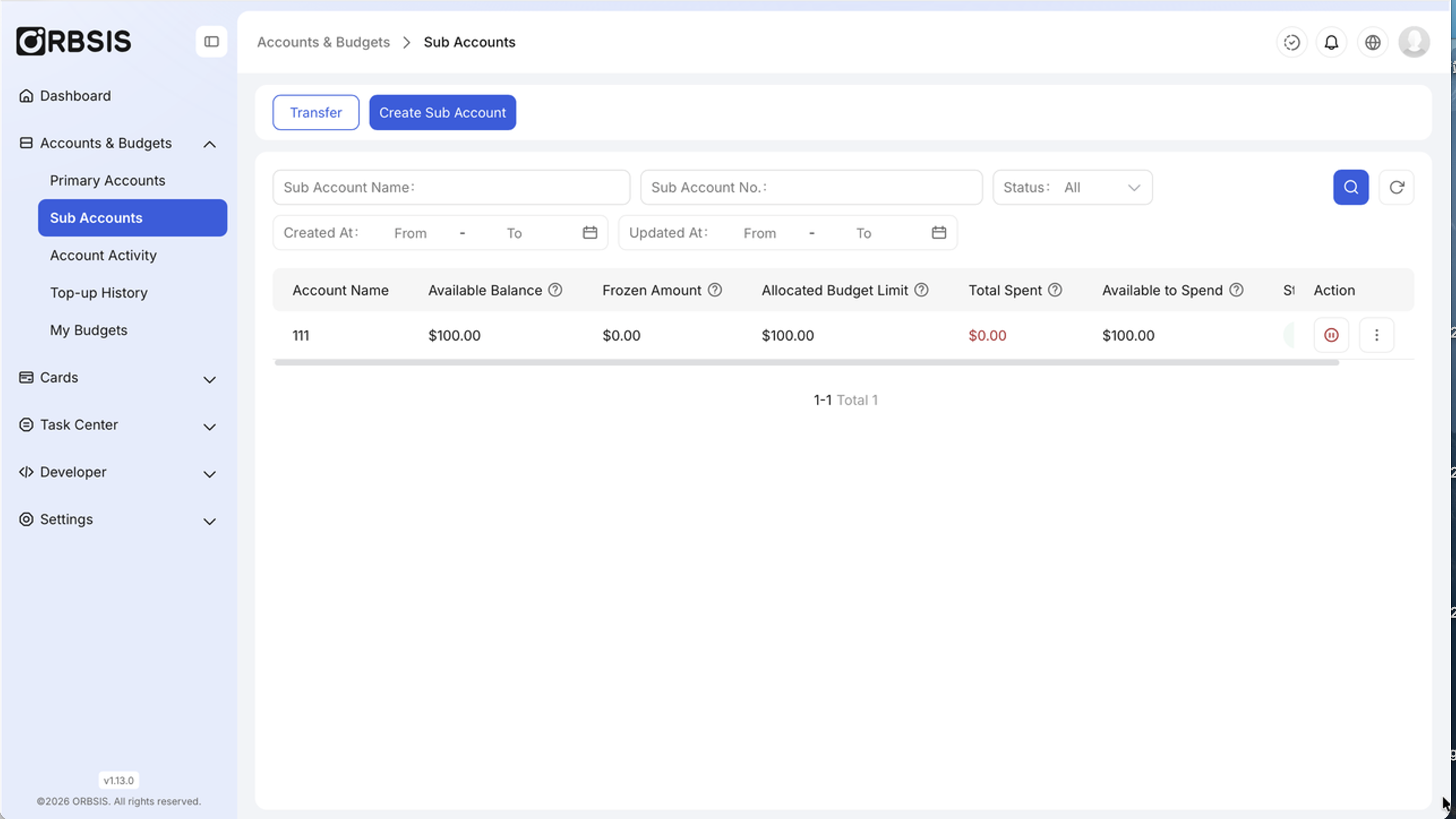
Sub-account Basic Information
Search and Filter Account Details
Account details track fund transfers and Budget Limit changes. Check card spending, refunds, and authorization statuses under [Card Transactions].
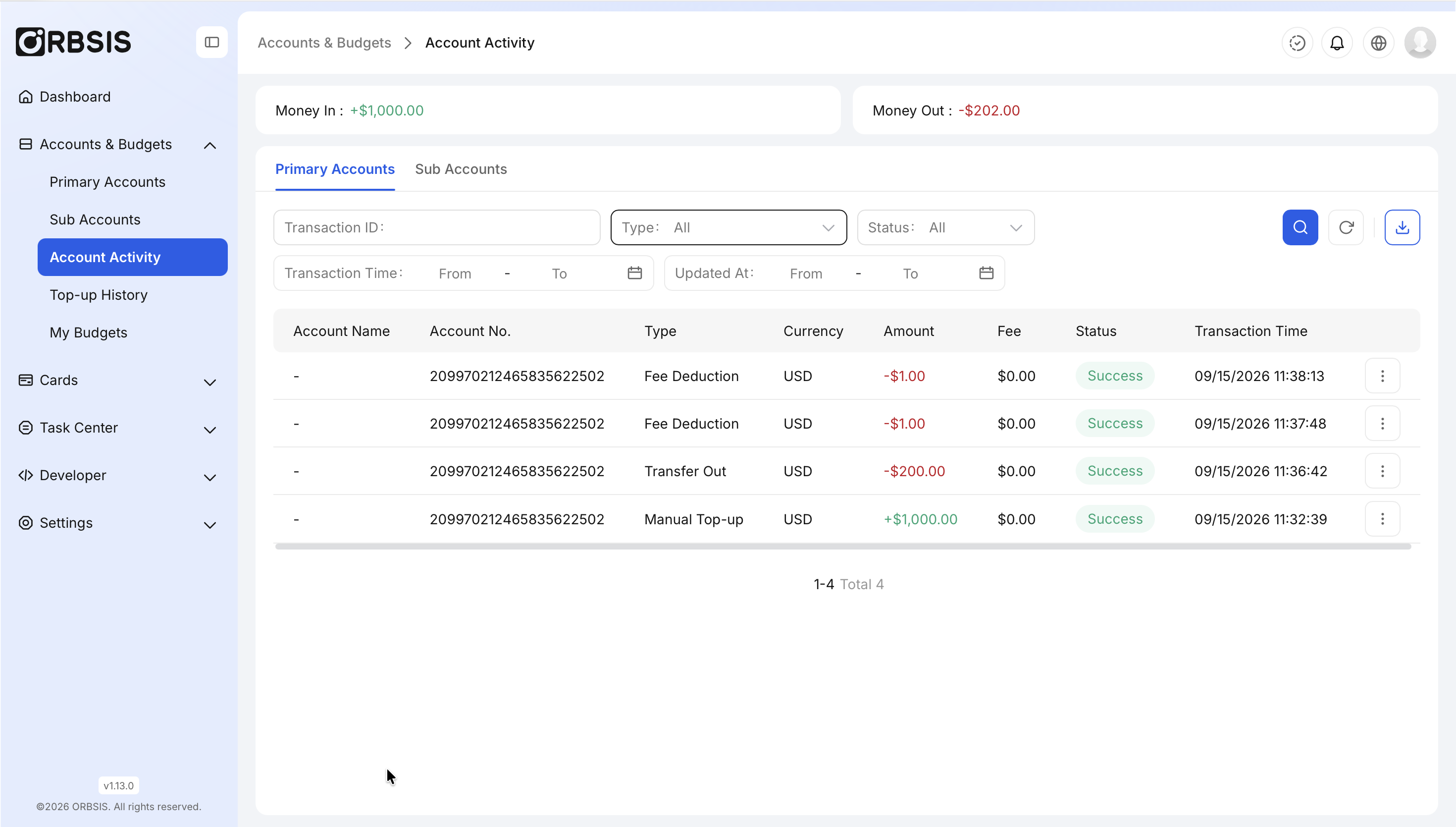
Primary Account Details
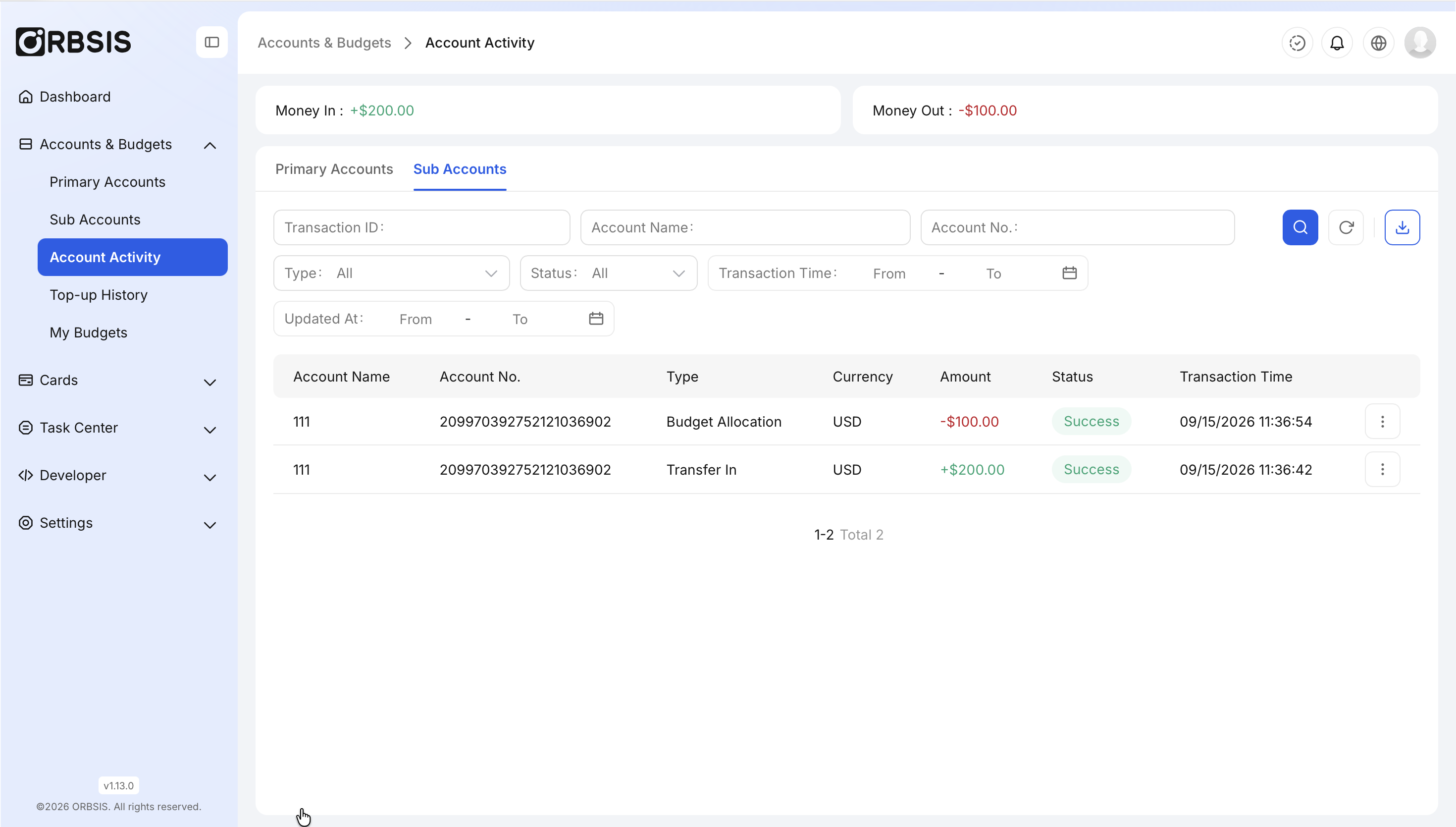
Sub-account Details
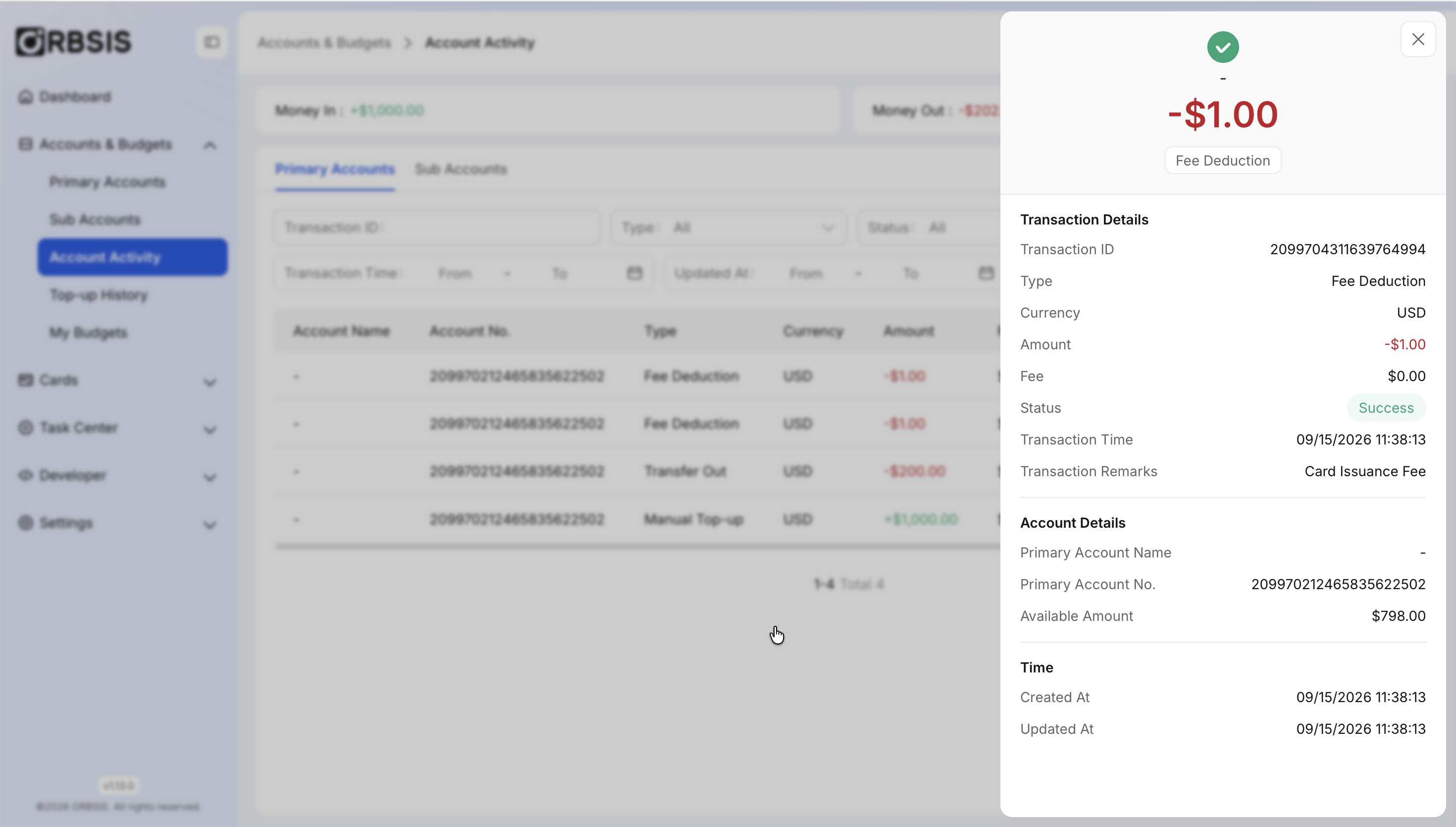
Account Detail
You can narrow the results by transaction type and status. For reconciliation, select the date first, then the account and type, and export the results last.
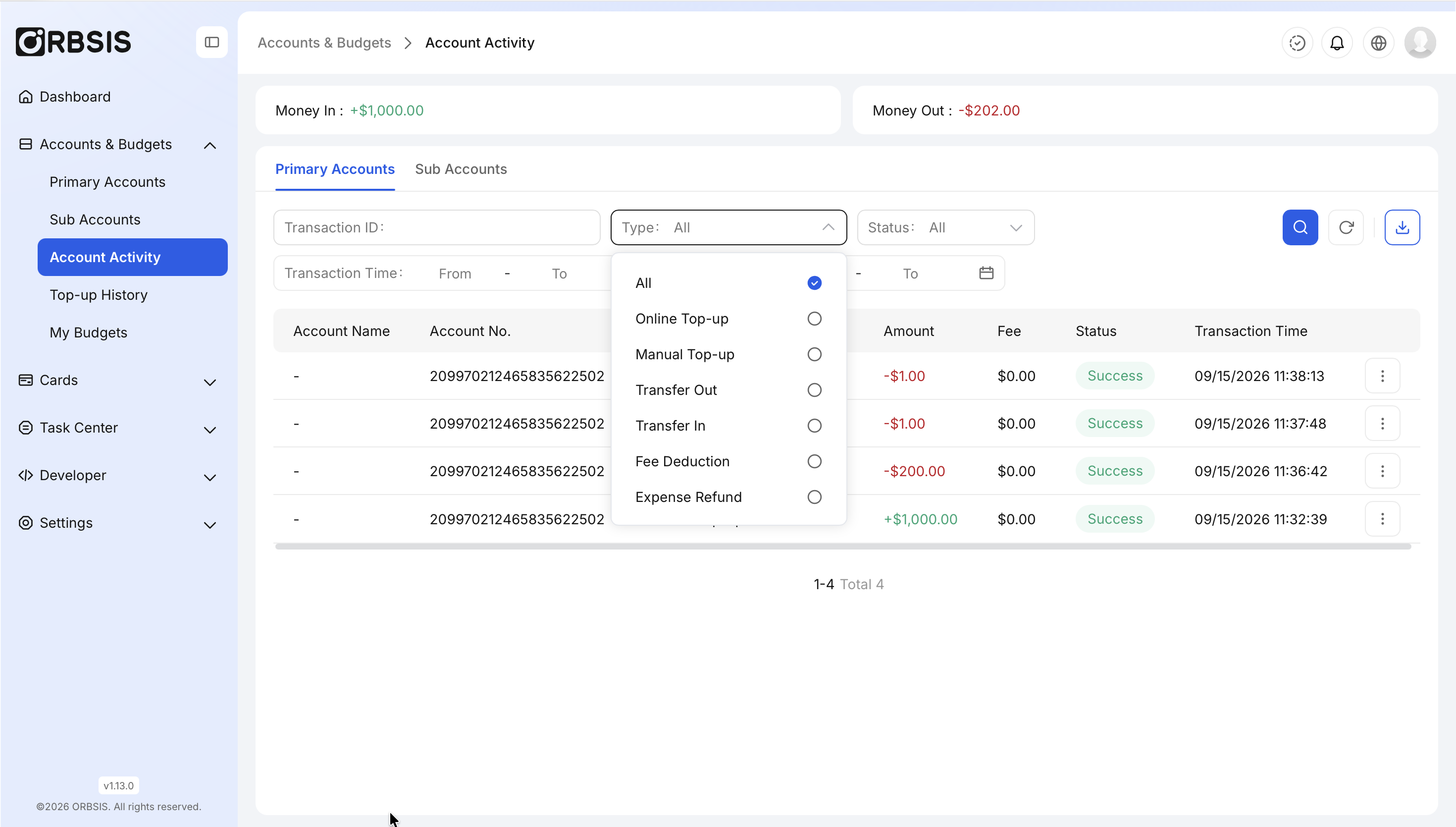
Transaction Type Filter
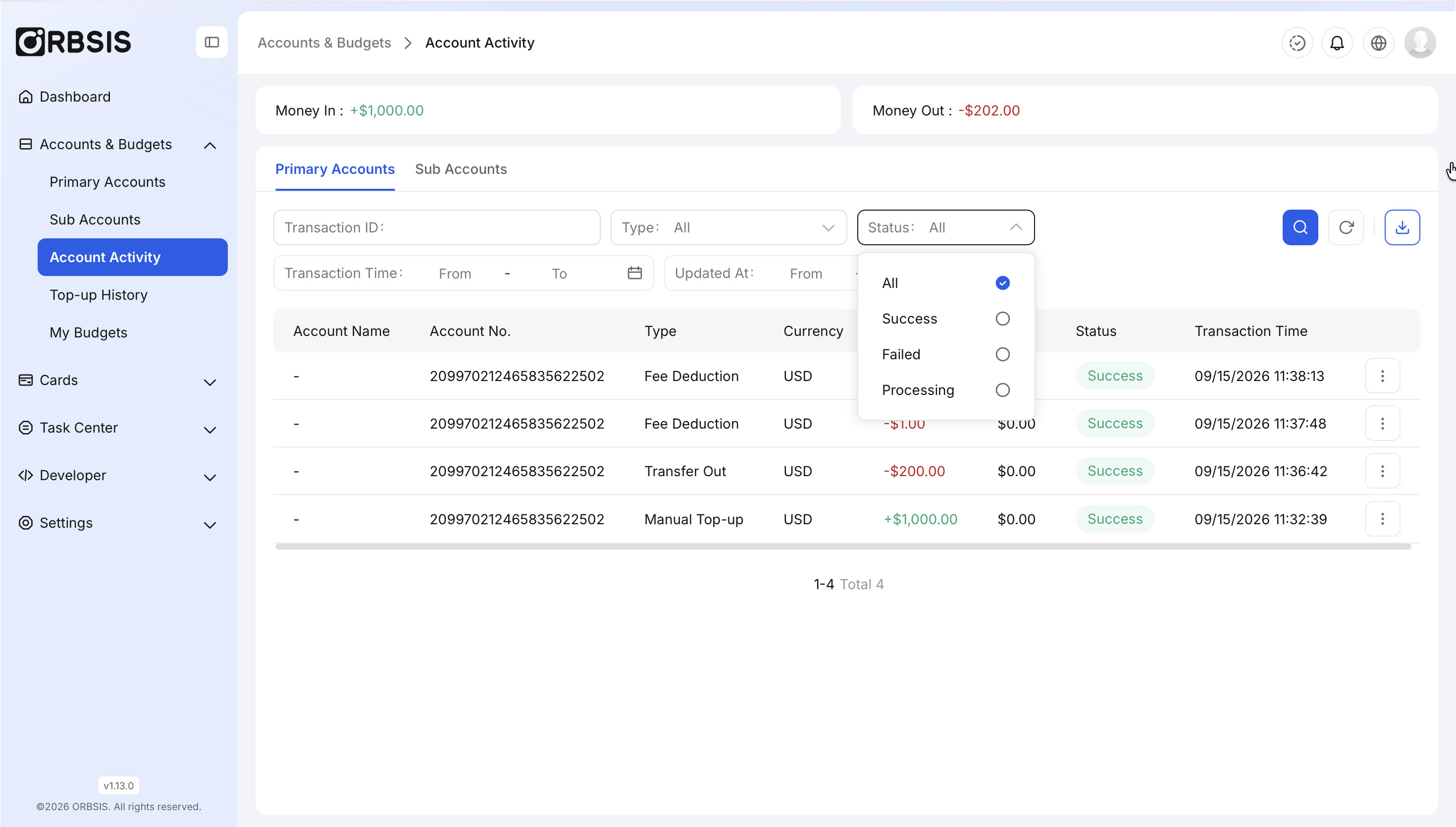
Transaction Status Filter
View Top-up Records
The Top-up Records page shows initiated or completed funding transactions. If the list is empty, first confirm that the correct recipient information was used and that the funds are not still being processed by the bank.