Virtual Cards
What Is a Virtual Card
A virtual card is a payment instrument. Before creating one, you need an available card product, an existing Budget, and the required permissions. Cards are Shared Limit Cards or Dedicated Limit Cards: Shared Limit Cards use the Budget’s Available Limit jointly, while Dedicated Limit Cards have an additional card-level limit within the Budget total.
For example, an organization can create a Dedicated Limit Card for each procurement employee or subscription service and keep spending within the Budget Limit. Even if one card’s details are exposed, other funds are not affected.
Why Virtual Card Management Is Required
ORBSIS supports the full card lifecycle, from creation, search, and limit adjustment to Enable, Disable, and Delete operations, including bulk operations. Organizations can manage many cards with minimal effort while protecting funds and payment credentials through granular status controls and operation records.
How to Use Virtual Cards
Select a Card Product and Create a Card
The card product page lists available BINs, card schemes, currencies, and usage scope. Before selecting a product, confirm that the target merchants, regions, and currencies meet your business needs.
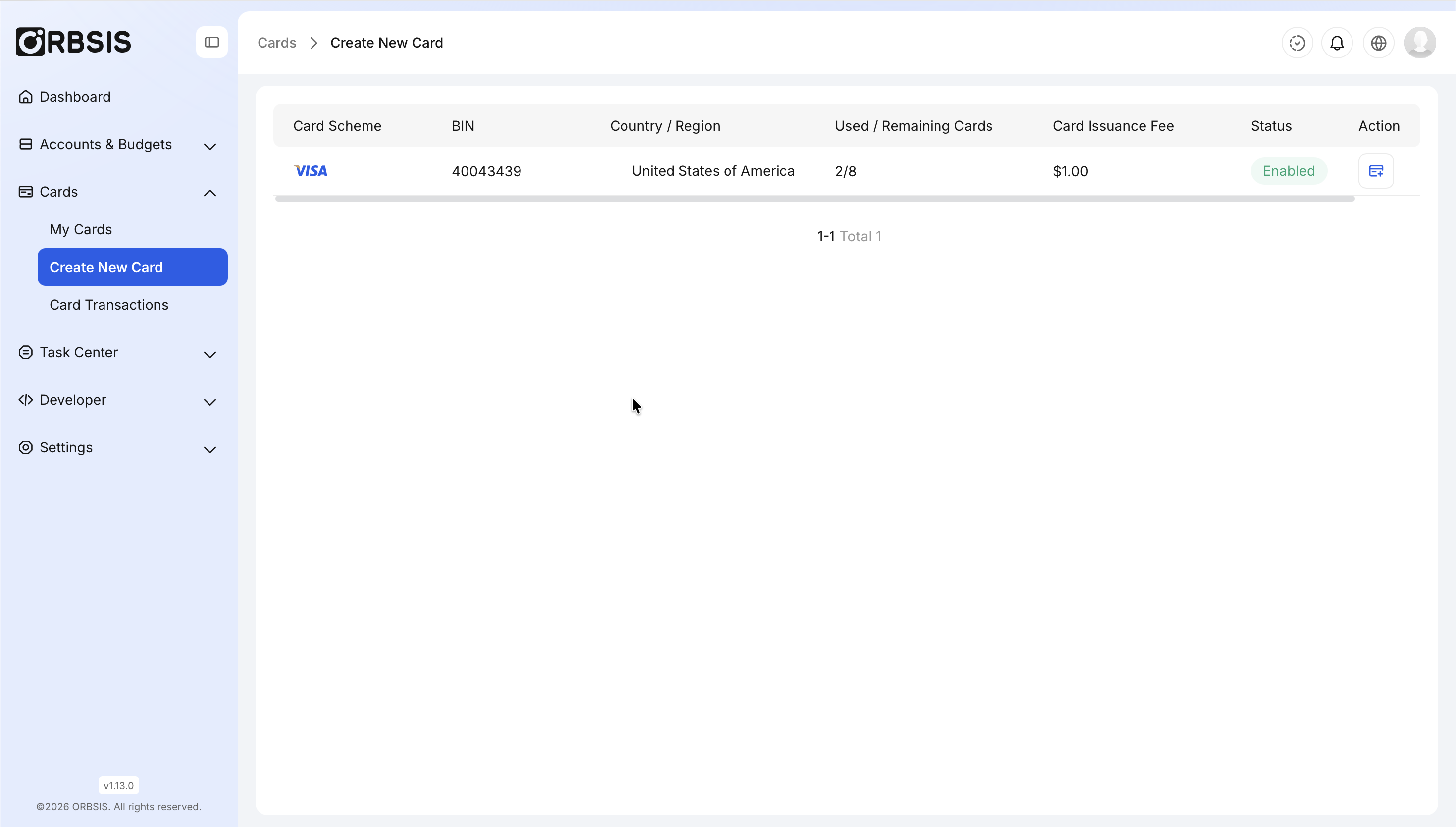
Card Products and BINs
Click the card creation entry for the target card product.
Enter a card name and select the associated Budget and card type.
If you select a Dedicated Limit Card, set a Card Limit no higher than the Budget’s Available Limit.
After confirmation, return to the card list and check the card status and Available to Spend.
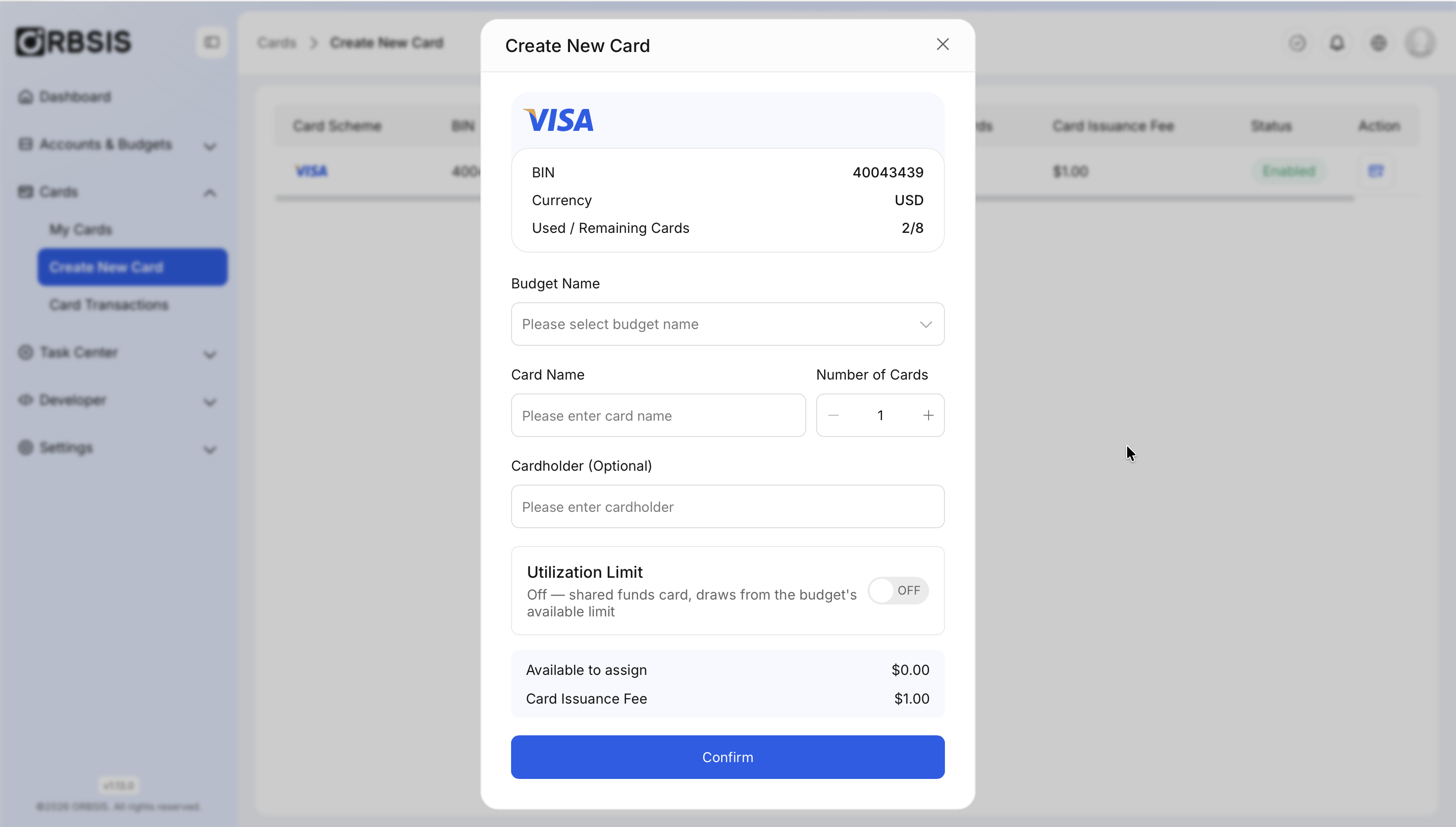
Create Virtual Card
Security reminder Card numbers, expiry dates, and security codes are sensitive payment credentials. Provide them only to authorized users or controlled systems. Do not place them in chat history, ticket text, or public documents.
Find and Filter Cards
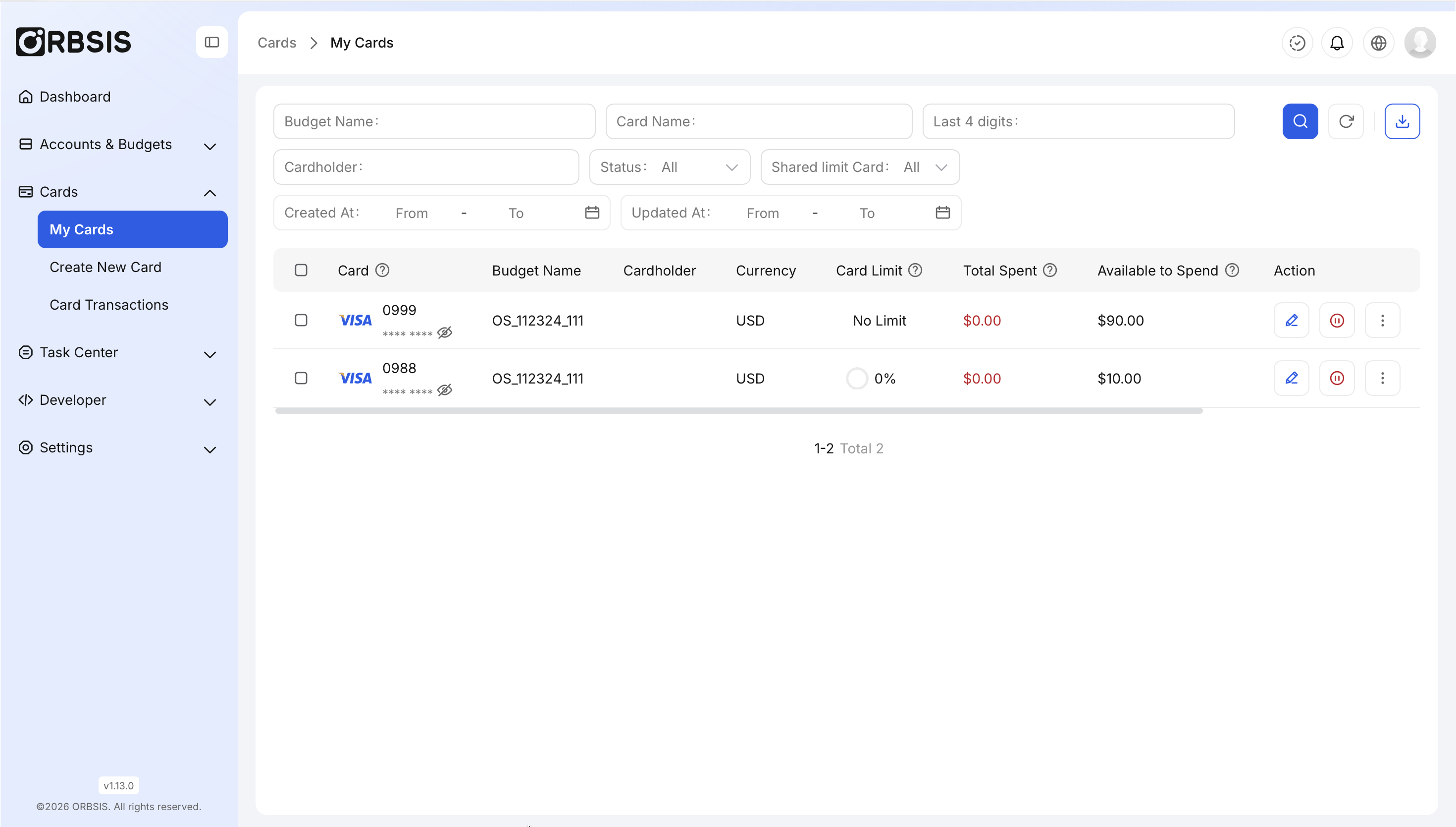
Card List and Filters
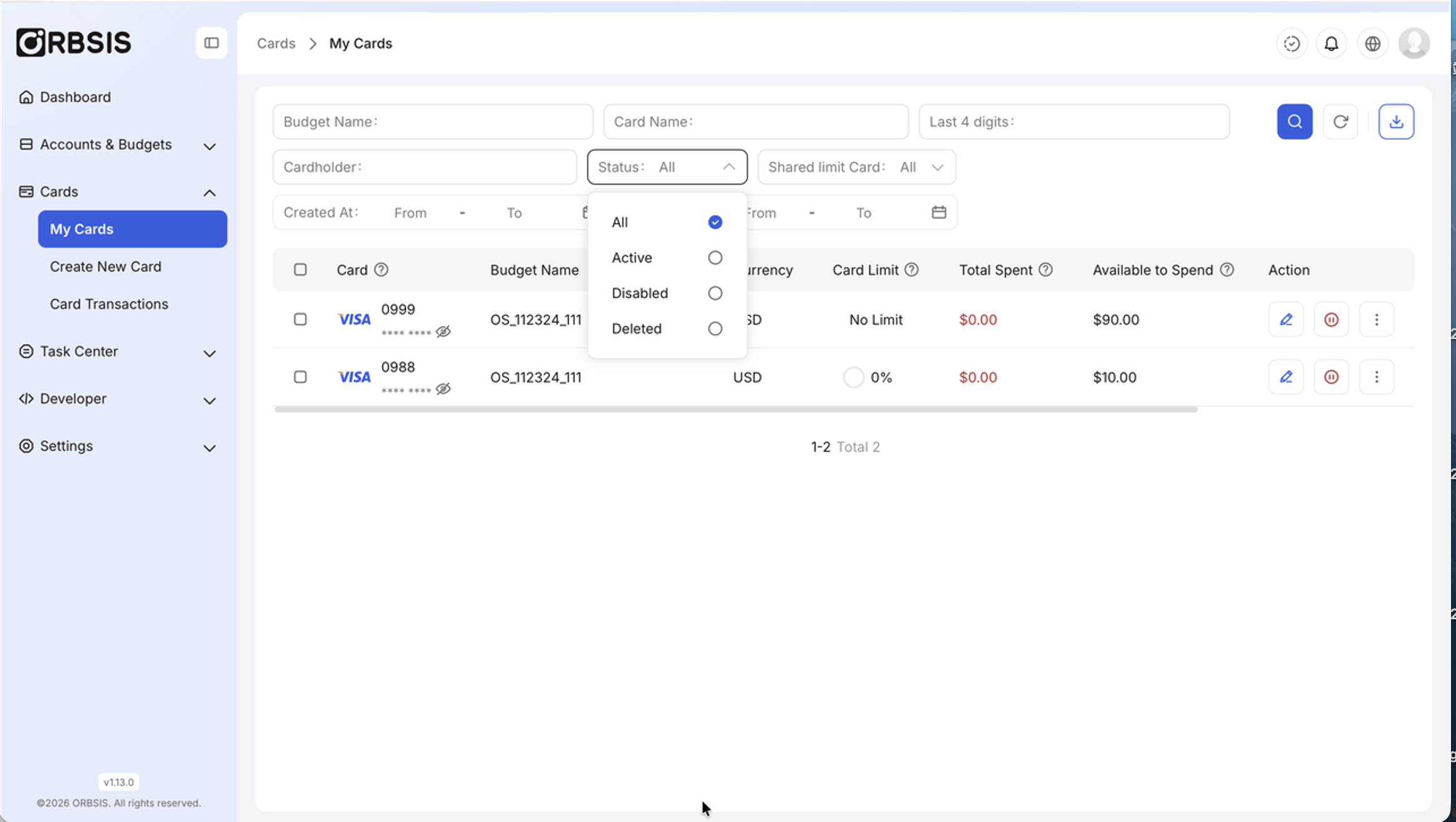
Card Status Filter
View Card Details
Card details include basic information, limits, operation records, and transaction records. When troubleshooting, first check the card status, expiry date, and associated Budget, then review the limit and recent operations.
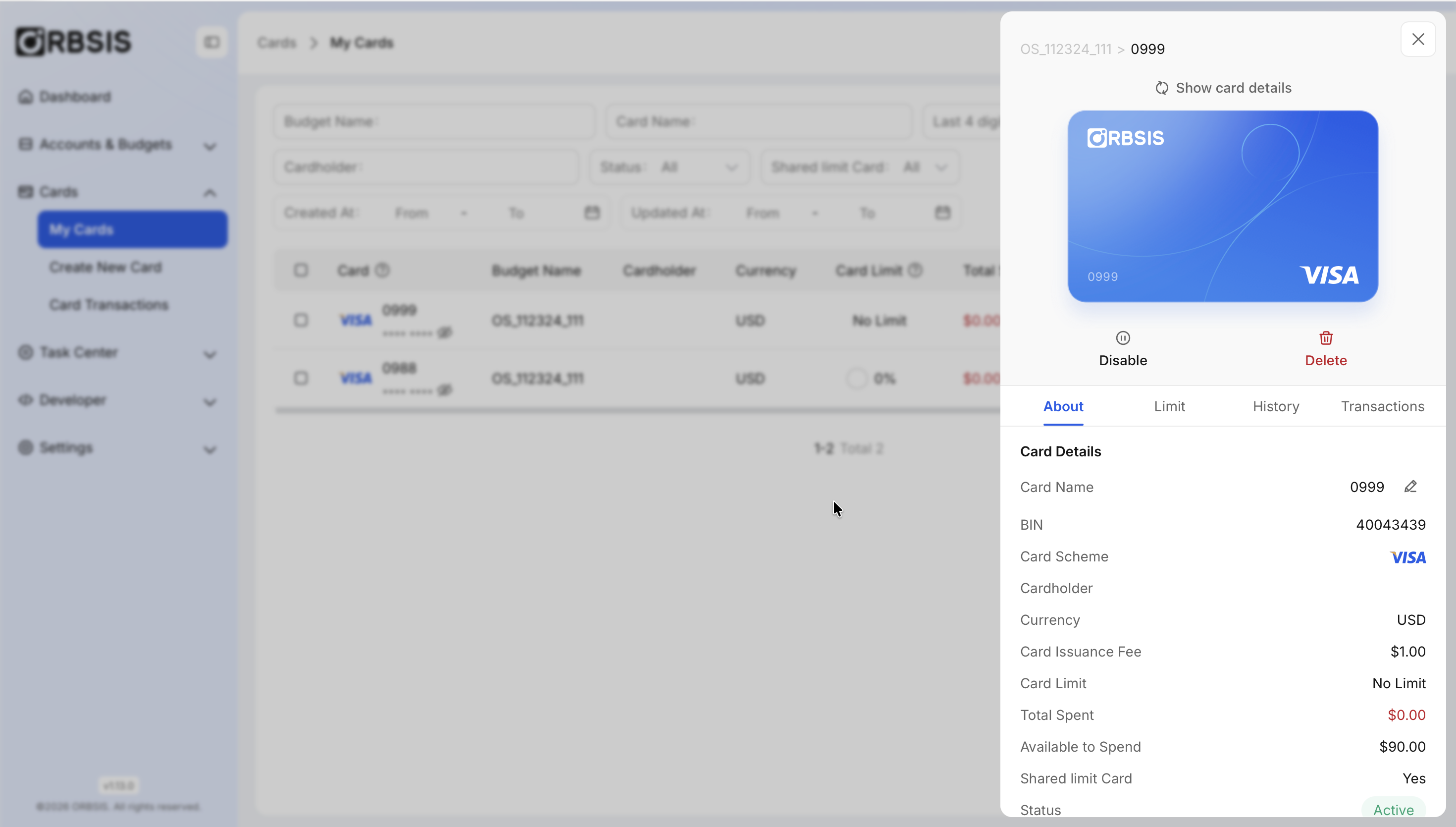
Card Basic Information
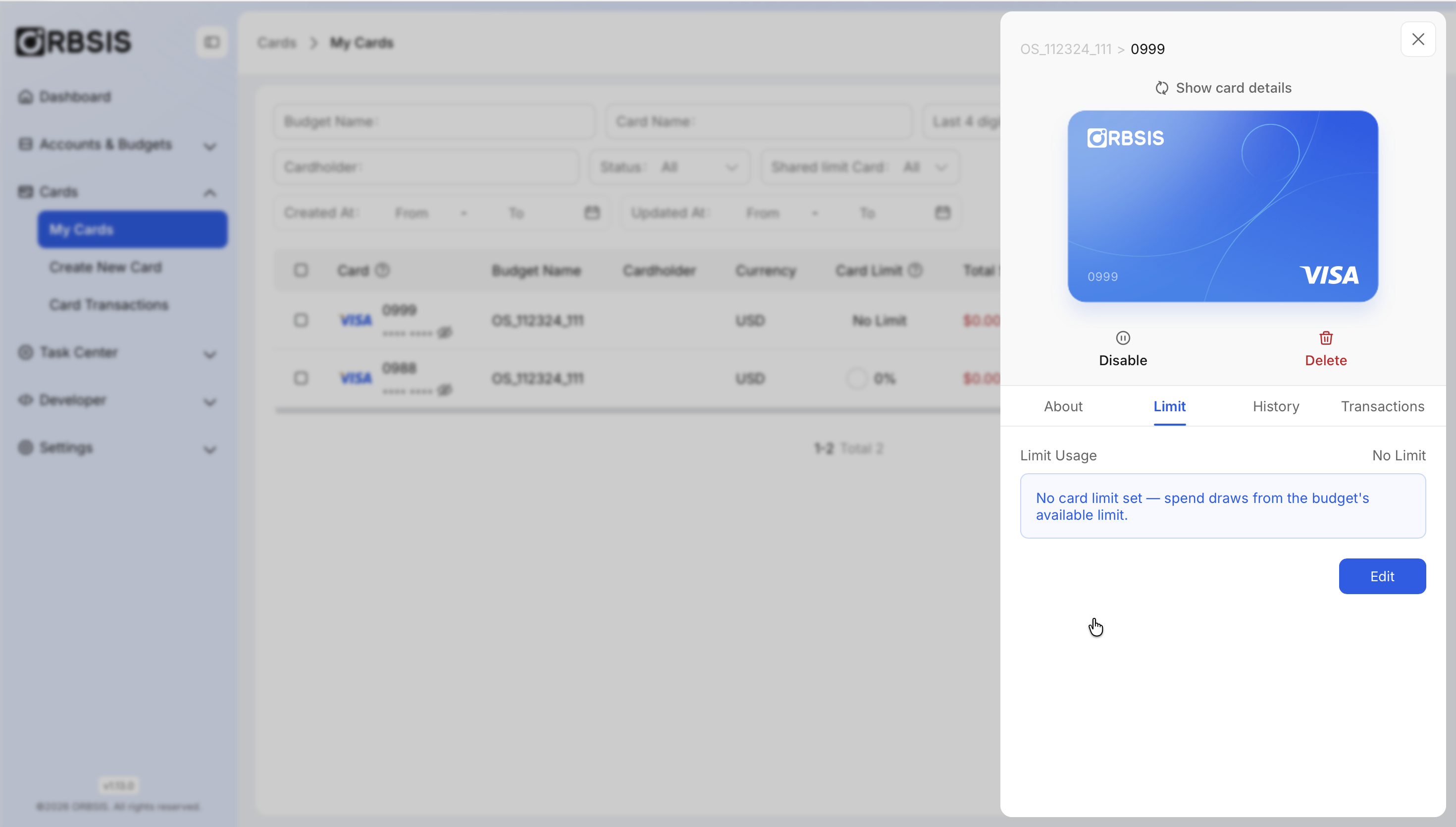
Card Limit
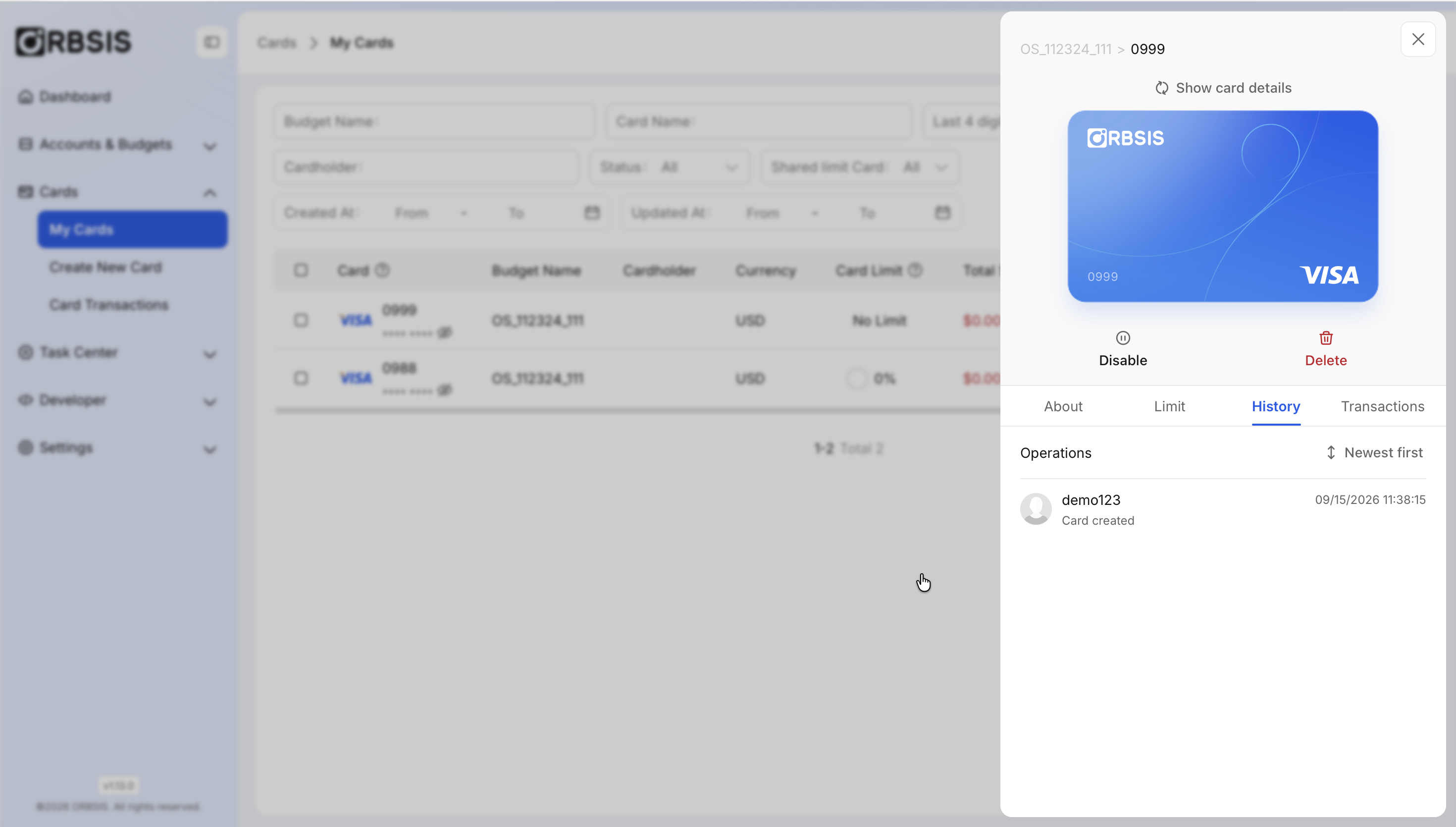
Card Operation Records
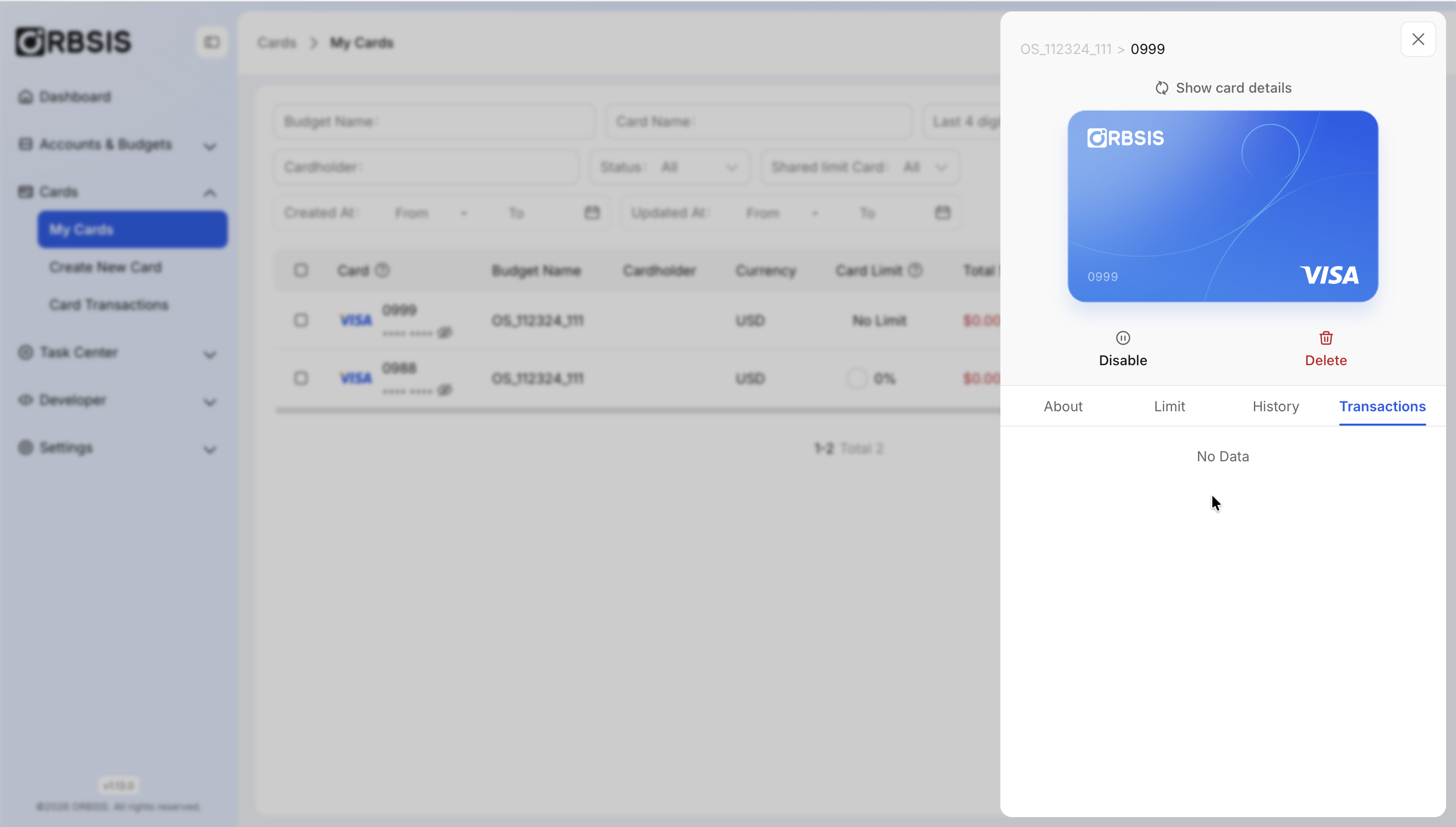
Card Transaction Records
Enable, Disable, and Delete Cards
Change the card status from the card details page. All operations are recorded in the operation records for later audit.
- Enable: restore the card to an Active state so it can be used for payments;
- Disable: temporarily stop the card without deleting the card or its history; it can be enabled again at any time;
- Delete: permanently stop the card and make it unrecoverable; use this for employee departures, lost cards, or completed projects.
Reminder Before deleting a card, confirm that it has no authorizations still in processing to avoid unresolved transactions. Check the status-change history in Figure 5-7, Card Operation Records.
Manage Cards in Bulk (Enable / Disable / Delete)
When several cards must be handled at once, such as after a team change or the end of a campaign, you do not need to operate on them one by one:
Go to [Card Management → Card List] and select the cards to process using the checkboxes on the left.
Click the bulk-operation entry above the list and choose bulk Enable, bulk Disable, or bulk Delete.
After submission, go to [Task Center → Bulk Tasks] to view progress. Task statuses include In Progress, Succeeded, Partially Succeeded, and Failed.
If processing fails for some cards, locate the reason in the task details and resubmit.