Work with Operational Data
To reduce the learning curve, list pages across the platform follow a consistent interaction pattern.
Once you understand the common operations below, you can quickly work with most modules in the Operations Platform.
Combined Filters
The top of each list page contains a filter panel with multiple query conditions.
Conditions use AND logic, which means a record is returned only when it satisfies all selected conditions.
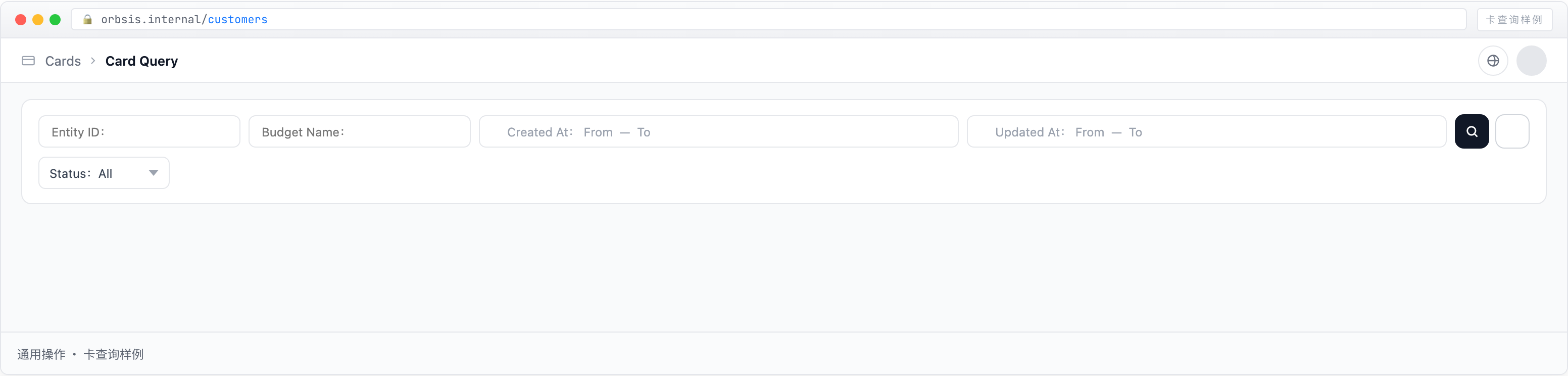
| Control | Type | Usage |
|---|---|---|
| Text Input | TEXT | Supports exact matching. Enter a complete account number, customer number, or name. Leave blank to apply no restriction |
| Dropdown | ENUM | Select from predefined options. Selecting All is equivalent to applying no restriction |
| Date Range | DATE | Select a start and end time as a closed interval. A range of no more than 3 months is recommended for better query performance |
| Search Button | PRIMARY | Applies the current filters and refreshes the list |
| Reset Button | DEFAULT | Clears all filters and restores the initial list |
View Details
The last column of each list row provides a ⋮ More button.
Clicking it opens a detail drawer from the right side of the screen and displays the complete fields for that record.
The original Operations documentation contains two different interaction descriptions:
- Details can only be opened through the
⋮button - Clicking anywhere on a list row can also open details
Actual behavior may vary by module. Follow the interaction currently implemented in the Operations Platform.
-
Locate the Target Record
Use filters or pagination to find the record you want to review.
-
Open the Detail Drawer
Use the
⋮action button in the list to open the record details. -
Review Grouped Information
Fields in the drawer are typically grouped into sections such as:
- Basic Information
- Transaction Information
- Account Information
- Customer Information
- Date Information
Some modules also provide tabs for additional views.
-
Close the Drawer
Close the drawer by clicking the
✕button, clicking the overlay outside the drawer, or pressingEsc.
Export and Pagination
| Action | Entry Point | Description |
|---|---|---|
| Export List | ⬇ icon | Exports all records matching the current filters to an Excel file. The file name includes the module name and timestamp |
| Pagination | Bottom of list | Use ‹ and › to move between pages, or click a page number directly |
| Rows per Page | Dropdown | Switch between 10 / 20 / 50 rows per page. Larger page sizes may result in slower queries. The recommended default is 20 |
:::tip Export Limit
A single export supports up to 30,000 records.
For larger datasets, narrow the date range or add more filters to avoid triggering rate limits.
Exported files may contain sensitive information. Store and handle them securely.
:::